
Free Image to 3D Model Generator
Drop in one photo, or upload up to 8 reference images and generate 2 or 4 variants side by side — Separate models to get one mesh per image, or Multiple views to fuse angles of the same object. Compare them in clay or wireframe, then export GLB, STL or OBJ. 10 Hi3DGen runs are free without an account; batch generation is included from Pro.
Try it free3D Model Selection
01Image to 3D
Start with one image. Add another to create a separate model.
Describe one object, its shape, proportions and material.
02
Model & output
Checking…Pro
Checking the generation service…
Generation settings & cost
Single generation · Batch variations are a Pro feature.
The Generate button shows the current model and options cost before you start.
Image privacy & storage
Your image stays in this browser until you choose Generate. A generation request sends the required input to the selected model provider. Saved History stays in this browser until you delete it or clear site data.
3D PREVIEWReady for inputSample credits ↗
Your model will appear here
Generate a model or select a template.
Opening model
Loading this model into the viewer.
CURRENT MODEL
Model preview
Materials & textures Surface editor
Generate or open a model to edit its surface.
3D model examples and references
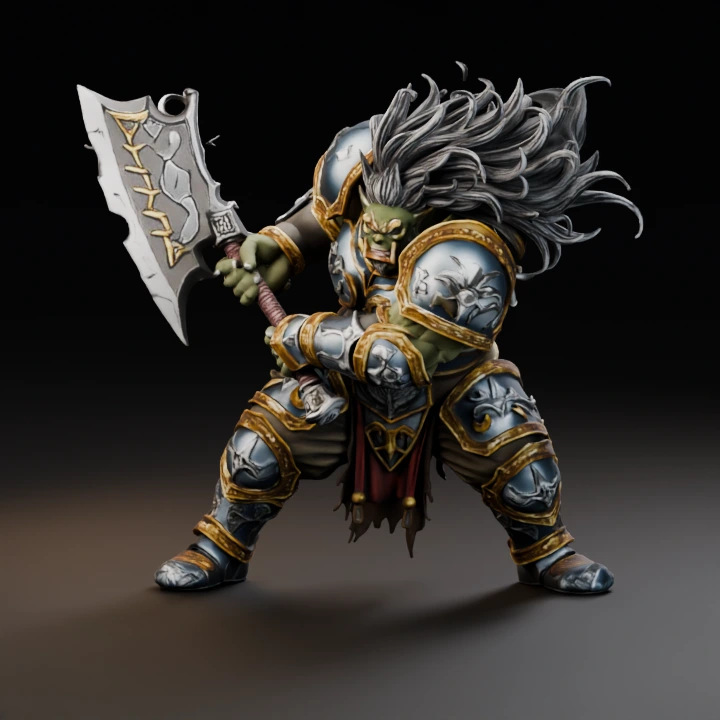
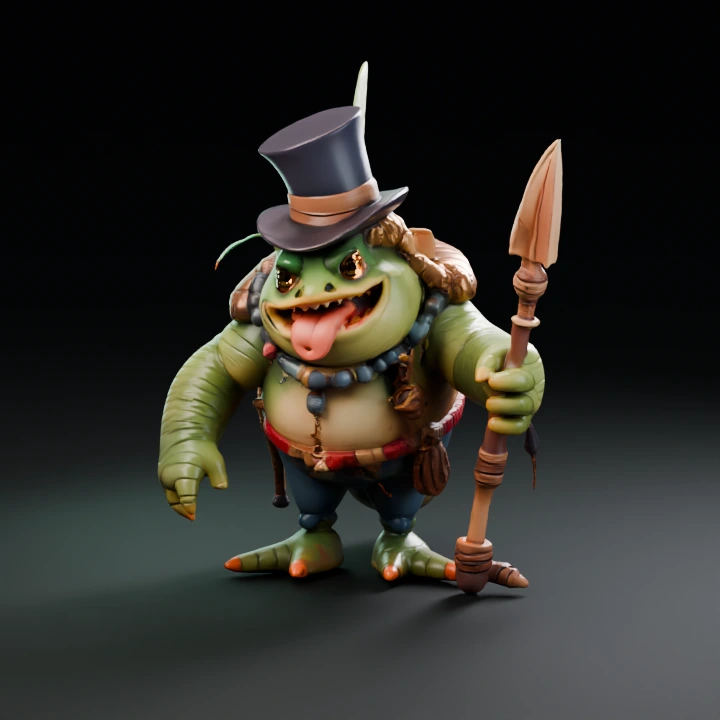
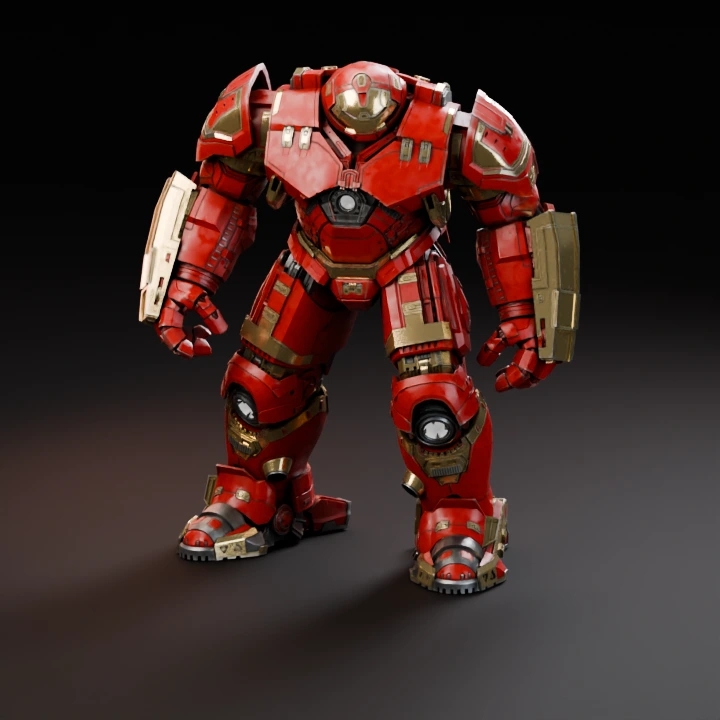
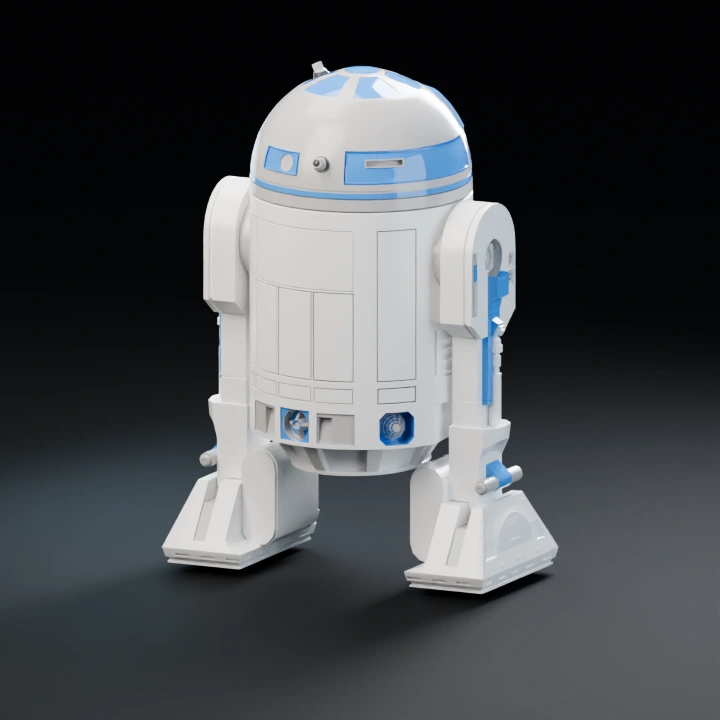
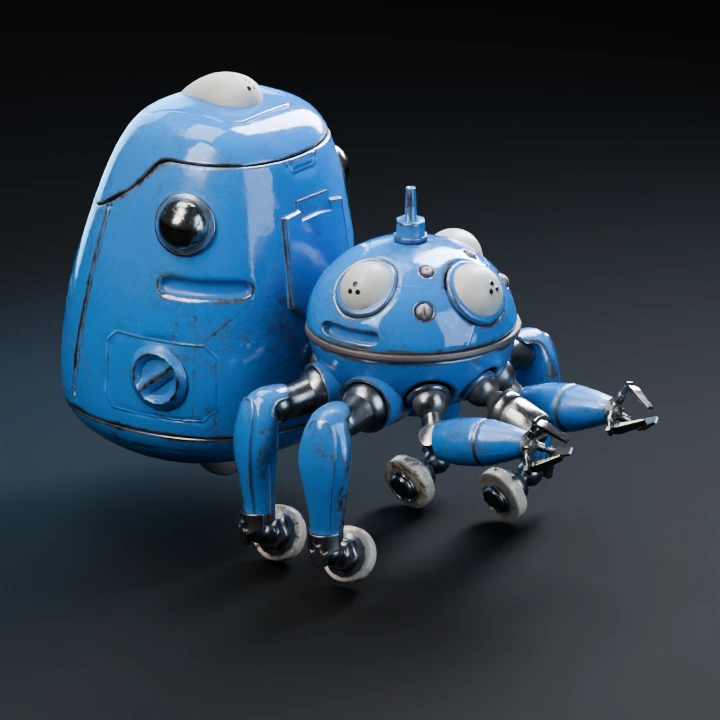
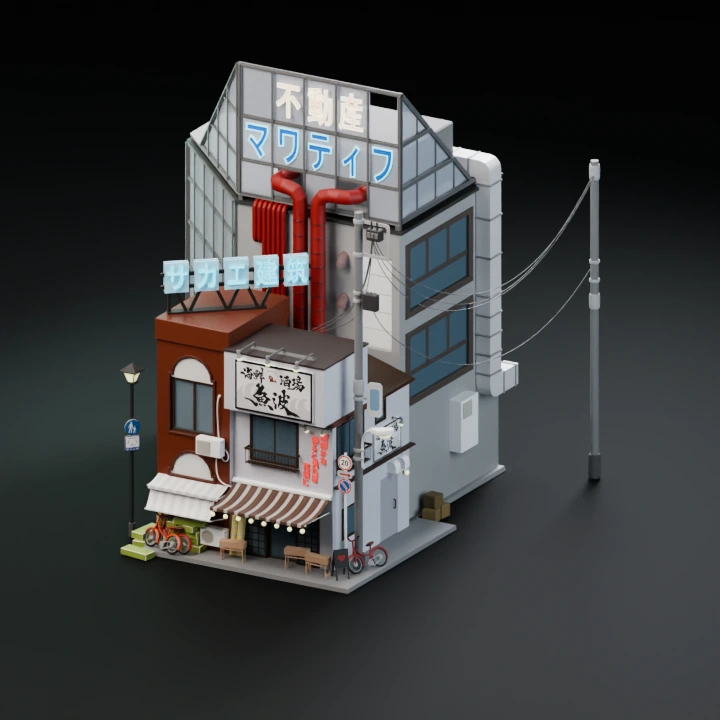
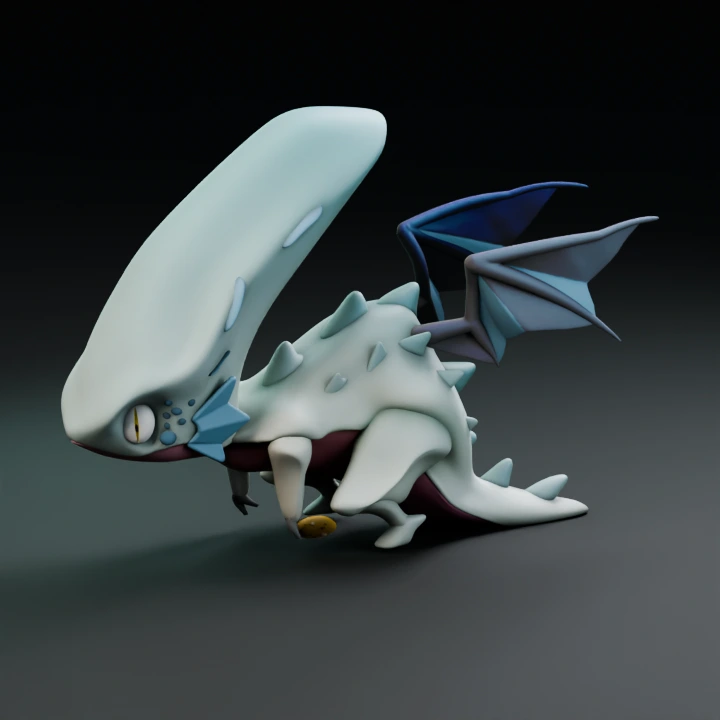
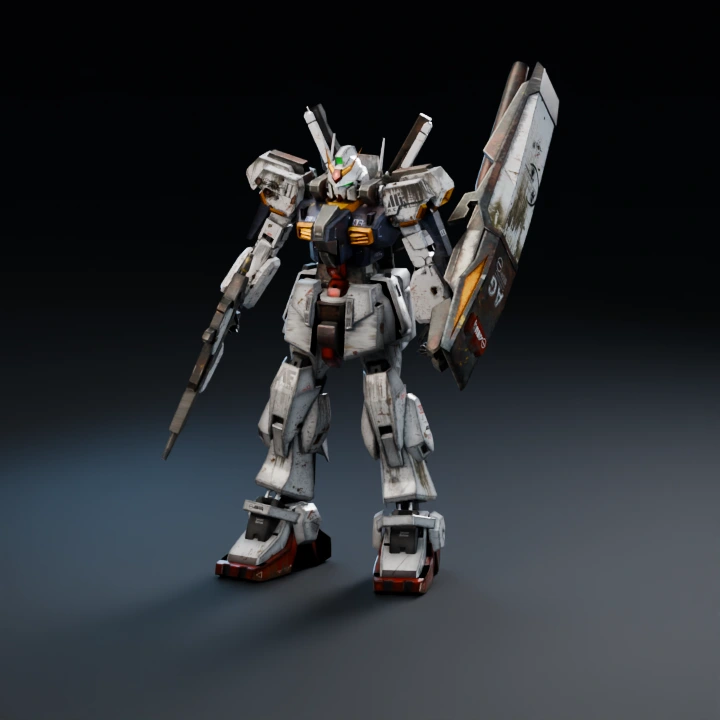
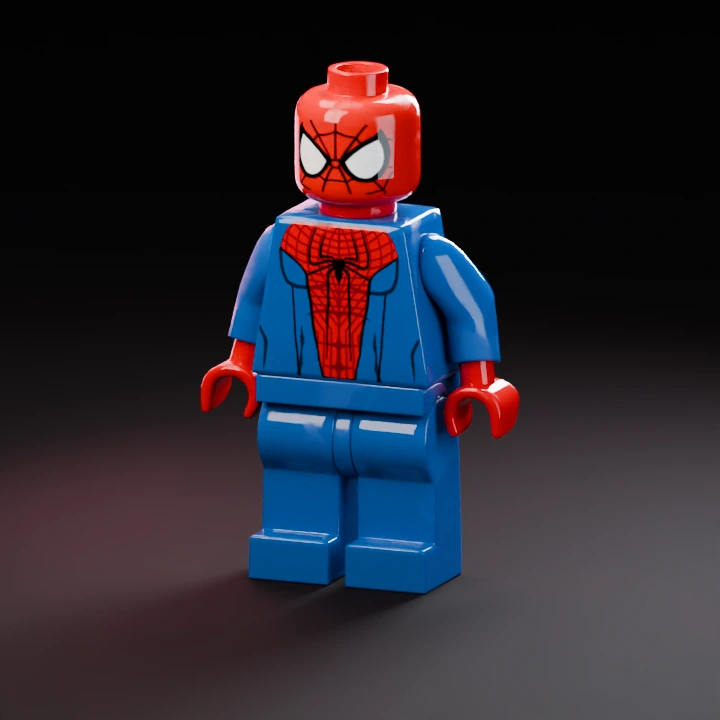
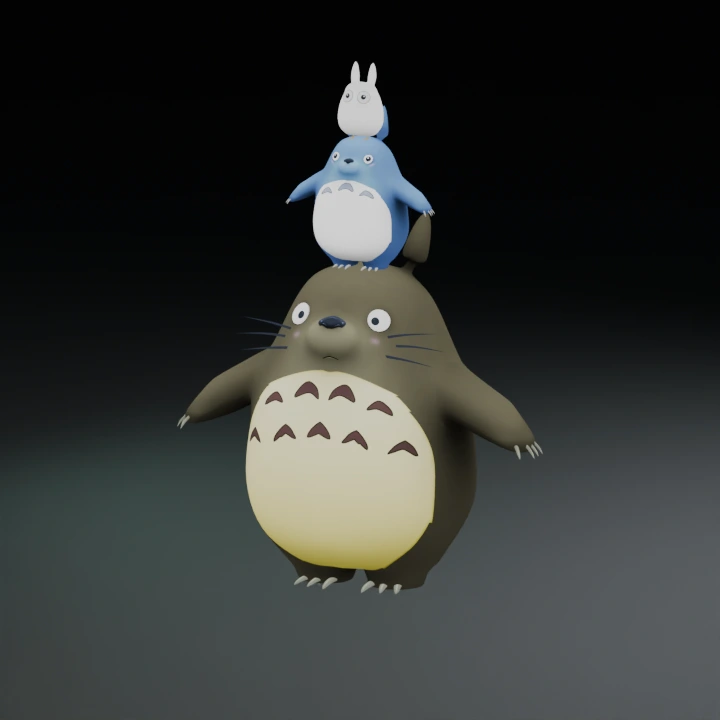
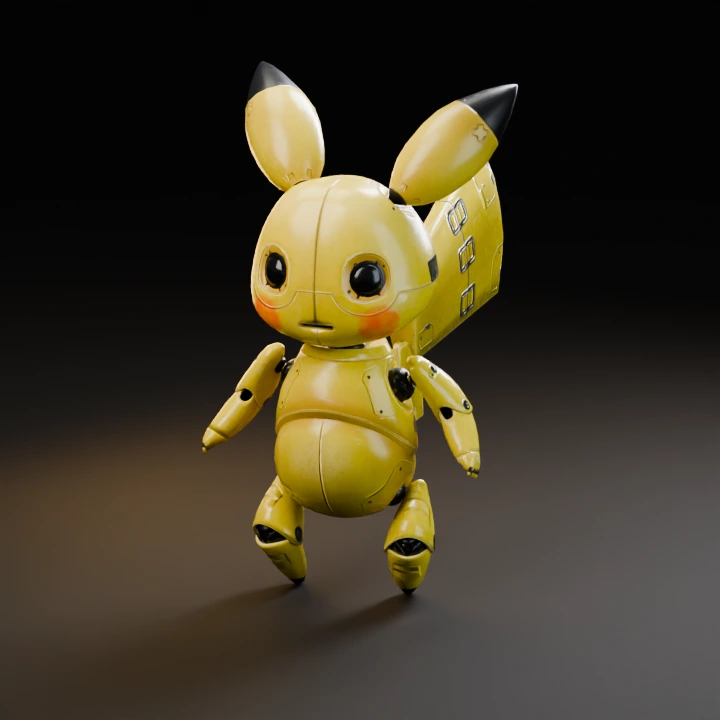
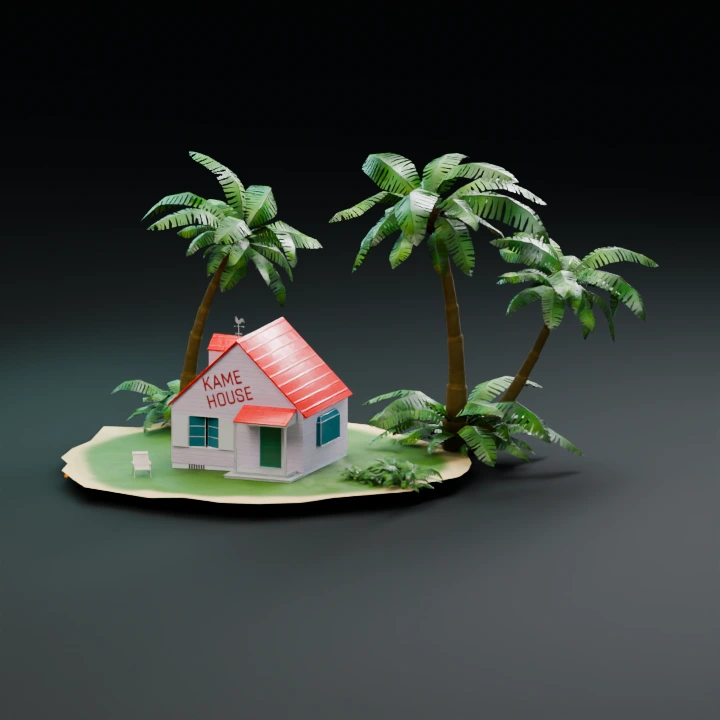
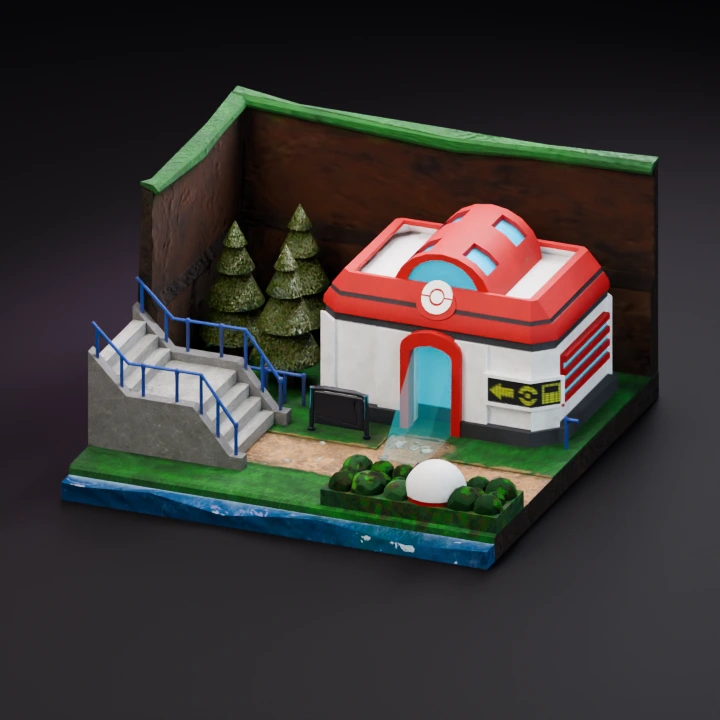
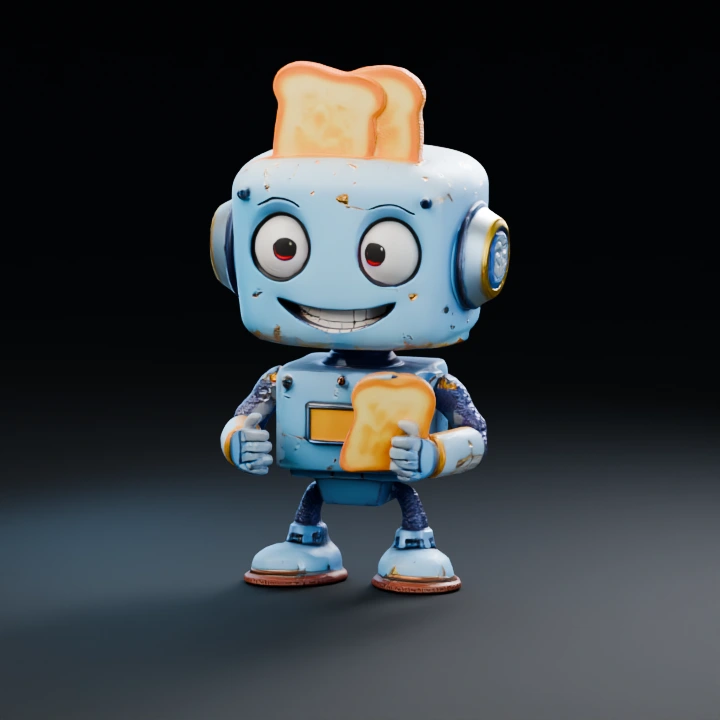
Batch generation: 8 images in, several meshes out
Batch generation is included from Pro. One run can turn several references into models you can compare before you export.
Separate models or Multiple views
Use Separate models when each photo is its own object: upload up to 8 reference images and get one mesh per image. Use Multiple views when the photos are different angles of the same object — those views are fused into a single model.
Choose 2 or 4 variants
When you want options rather than a single take, generate 2 or 4 variants side by side in the same run. Two is enough to check a direction; four is better when the pose, silhouette, or surface could go more than one way.
Lock one version and compare
Keep one version in view, switch to clay or wireframe, and inspect the mesh before you export GLB, STL or OBJ. Comparing variants in one workspace saves you from starting over on another site for each attempt.
How to convert an image to a 3D model
Upload a picture, generate a mesh, and check the model in the 3D viewer before exporting.
Start with a clear reference.
Choose a clear photo of one complete object. For multi-view generation, add matching views of that same object.
Reference image guide ↗Look beyond the surface.
Rotate a real model. Switch to clay or wireframe to inspect the geometry behind the material.
Open the 3D viewer ↗Make the right handoff.
Use GLB for materials, or STL and OBJ for geometry. Check scale and file limitations in your next tool.
Convert a model ↗Other inputs: text to 3D, multi-view to 3D, or sketch to 3D.
Find the right 3D workflow for your input
Image to 3D questions
Can I use image to 3D free, with no sign-up?
Try up to 10 free Hi3DGen generations without signing in. Sign in when you export, with your current model and edits kept open. After the trials, each Hi3DGen result adds 5 credits to the project. New accounts receive 50 credits. Signed-in accounts can claim 10 daily credits from the header balance. Confirm export to settle the accumulated credits. Other generation models require a subscription. See the 3D model generator workflows, or Check generation access and costs.
Is a free image to 3D model converter the same as a file converter?
No. Creating a model from a flat image requires reconstruction. A 3D model file converter changes the format of a mesh you already have. Converting OBJ to GLB does not generate missing geometry or textures.
What kind of 3D model can I generate from a photo?
Hi3DGen creates an untextured mesh from one image. Use it for shape studies and prototypes. Hunyuan3D Pro, Meshy and Hitem3D offer texture options when available. The workbench shows which engines can accept a generation request.
Where do my images and models go?
Your references and prompt stay in this browser tab until you choose Generate. Selecting Generate sends your input to the selected model provider. Completed models are saved in History on this device. Reloading clears an unsaved input draft. Read the Privacy Policy.
Which formats can I open and export?
Open self-contained GLB, STL and geometry-only OBJ up to 20 MB. The generated model preview may accept a larger GLB, subject to device limits. Animations are not preserved by local export. STL and OBJ export geometry without materials. See the format guide for compression, scale and export limits.
Are the models ready for 3D printing?
An STL download alone does not make a model print-ready. Check wall thickness, mesh integrity, units and scale in a suitable preparation tool.