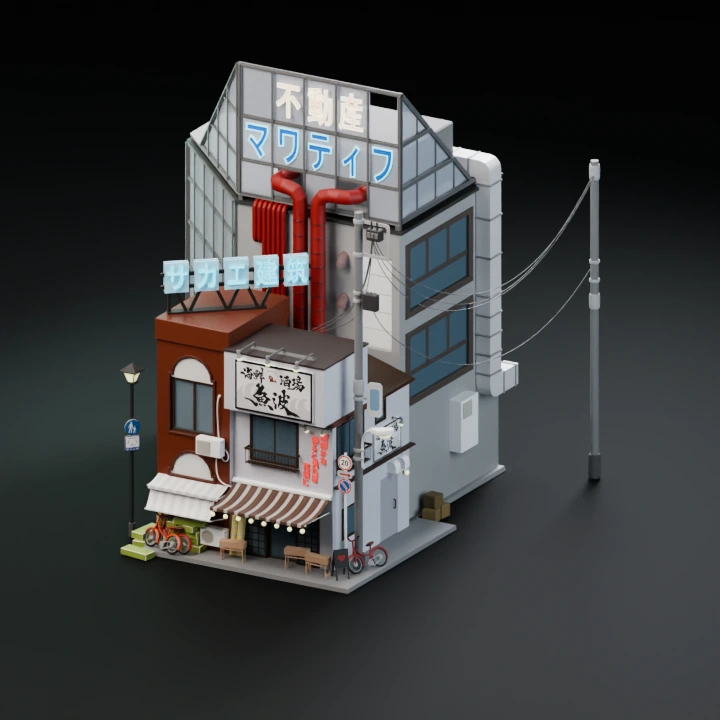
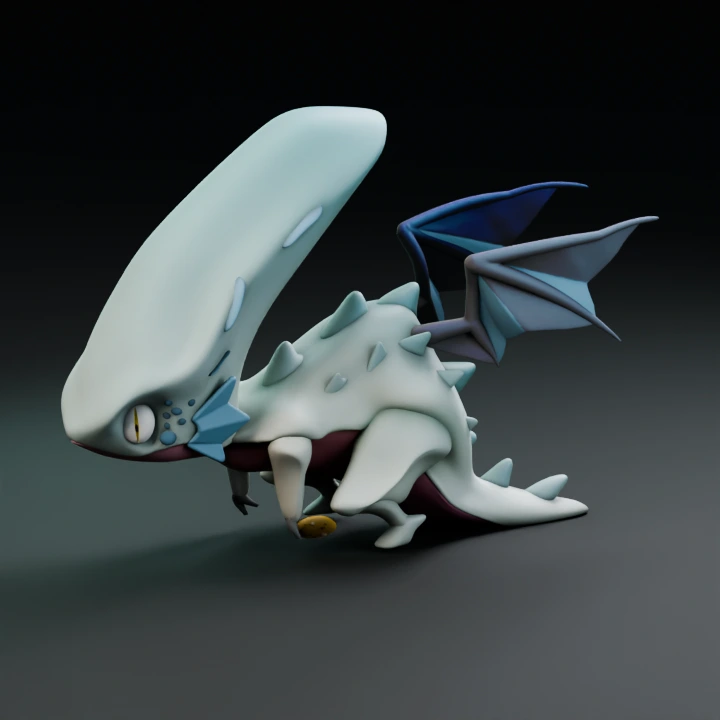
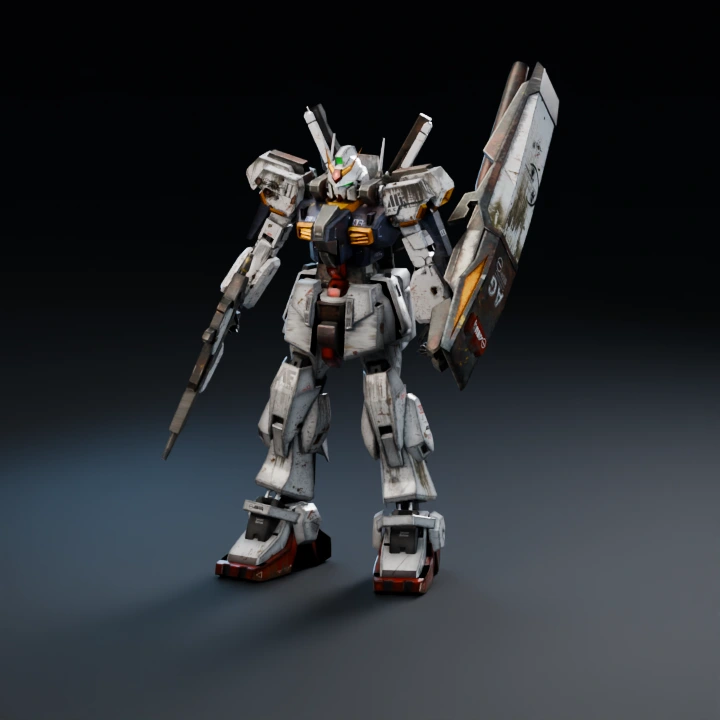
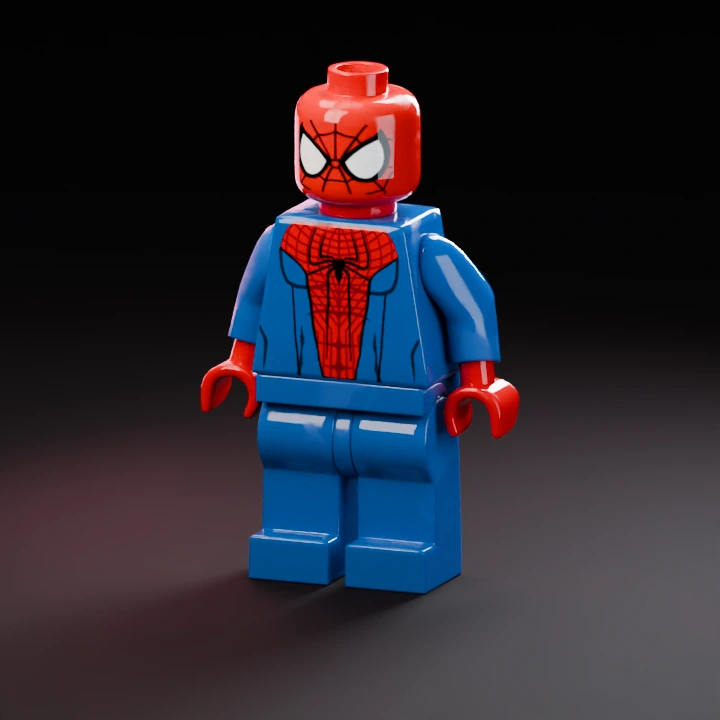
Start with one image. Add another to create a separate model.
Describe one object, its shape, proportions and material.
02
Model & output
Checking…
Pro
Checking the generation service…
Generation settings & cost +
Single generation · Batch variations are a Pro feature.
The Generate button shows the current model and options cost before you start.
Image privacy & storage +
Your image stays in this browser until you choose Generate. A generation request sends the required input to the selected model provider. Saved History stays in this browser until you delete it or clear site data.
Hi3DGen uses an estimated normal map to guide the mesh. Choose a well-separated subject and inspect the shape in clay or wireframe view. The input photograph cannot uniquely determine hidden surfaces.
When Hi3DGen is a good fit
Start here for a shape study, a prototype or a base mesh you plan to texture elsewhere. Choose one complete object and keep the edges clear. Select a textured model if the color and material are part of what you need to reproduce.
Repeat a geometry test
Keep the input image and Seed the same when adjusting Shape guidance or Detail guidance. Change one option at a time, and use clay or wireframe to check the object’s edges and inferred back. Hi3DGen creates geometry from a single image without a texture map.
Free trials and export
Try up to 10 free Hi3DGen generations without an account. Sign in to export GLB, STL or OBJ. Once the free trials are used, each successful result adds 5 credits to the project total.