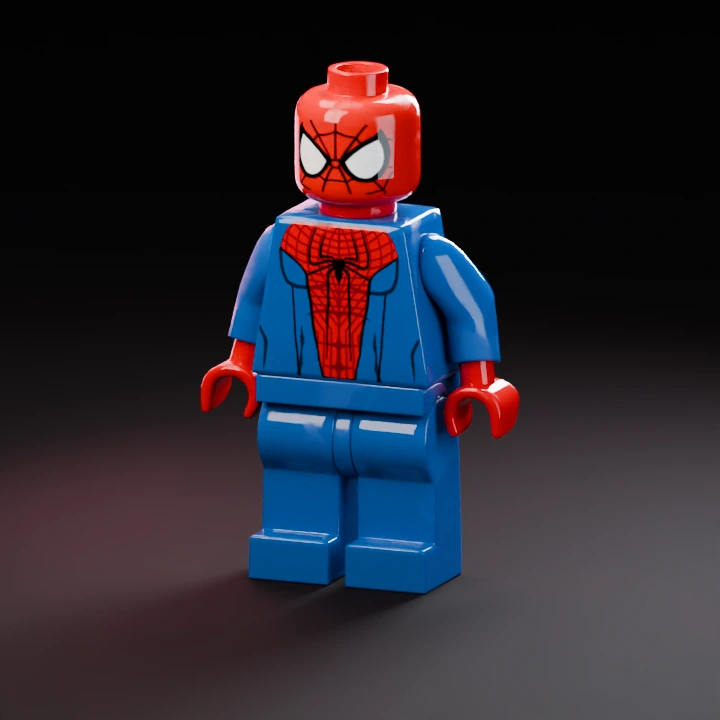
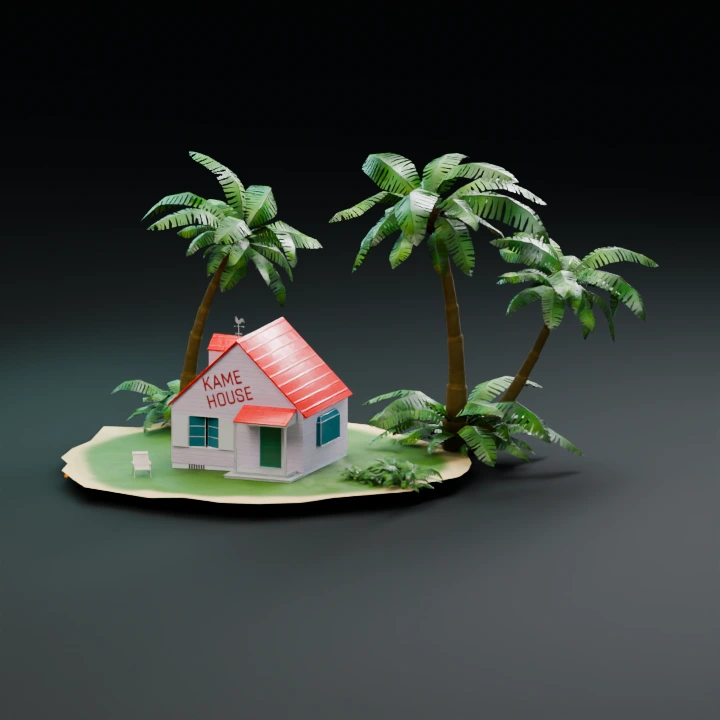
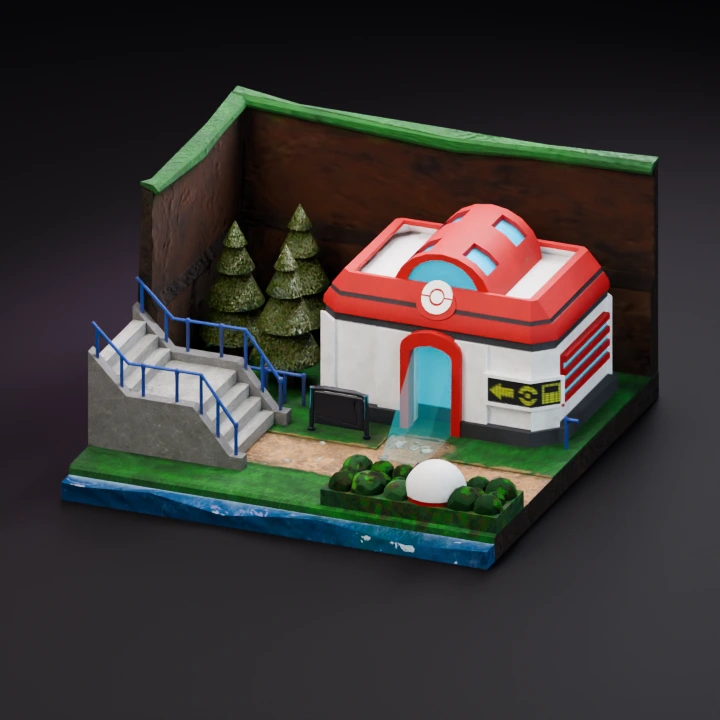
Start with one image. Add another to create a separate model.
Describe one object, its shape, proportions and material.
02
Model & output
Checking…
Pro
Checking the generation service…
Generation settings & cost +
Single generation · Batch variations are a Pro feature.
The Generate button shows the current model and options cost before you start.
Image privacy & storage +
Your image stays in this browser until you choose Generate. A generation request sends the required input to the selected model provider. Saved History stays in this browser until you delete it or clear site data.
Keep the subject complete and visible in a single image. Hitem3D Hi3D v3.0 runs through fal.ai. Choose the separate Hi3DGen workspace to try normal-guided geometry generation.
Choose Quality or Master
Begin with Quality when testing a new image. Choose Master when finer surface reconstruction matters and you can work with a denser file. Check the credit cost shown before generation.
Choose how much surface information to keep
Use Geometry only for a shape check, or generate textures and optional PBR maps for a material handoff. With textures enabled, de-shading adjusts how much lighting is removed from the input appearance. Use GLB to preserve supported maps.
Plan for the resulting mesh size
You can set a target face count or leave it blank for the provider default. Dense meshes can exceed the browser viewer’s limits. Save the original GLB and open it in a desktop 3D app if needed. Generating with Hitem3D requires a subscription.